Windows 11 vs. Windows 10: Which Taskbar Performs Better?
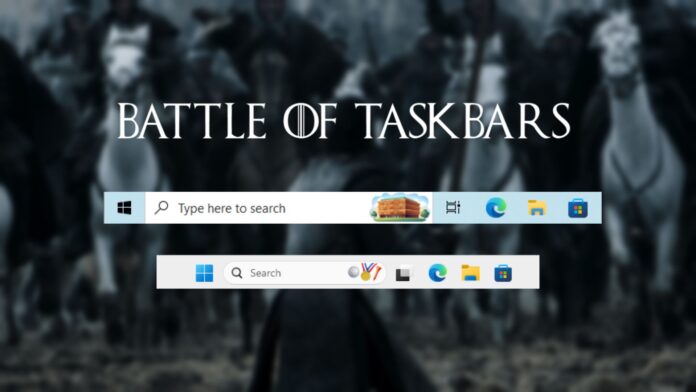
For years, Windows 10’s taskbar has been the benchmark for disgruntled Windows 11 users. Every time MS introduced something new to the taskbar while removing older features, the common sentiment in the community has been, “Just go back to Windows 10.” Now, as MS gradually restores features it initially removed in 2021, I took the opportunity to compare both taskbars side by side on separate machines. The goal? To evaluate how much ground Windows 11 has regained and identify areas where it still lags.
To save you some time, here's the verdict: Windows 11’s taskbar has made significant strides toward reaching the functionality of Windows 10’s taskbar. However, the interaction experience between the two remains distinct, and there are still gaps that MS has yet to address.
Taskbars in Windows 10 and 11: A Visual Contrast
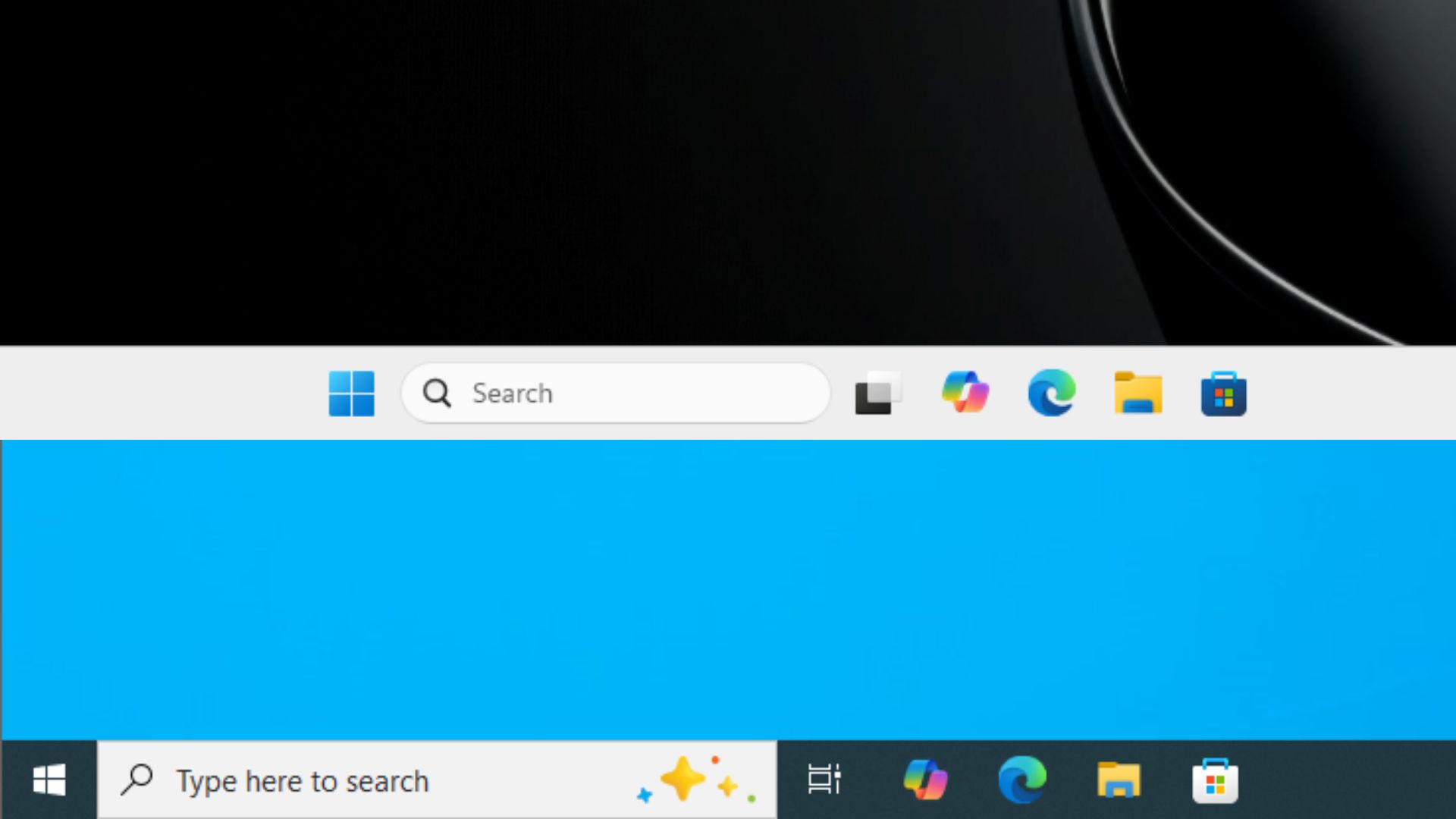
The most obvious change that users notice when upgrading to Windows 11 is the new default centered alignment of taskbar icons. Unlike Windows 10 and its predecessors, which featured left-aligned taskbar icons, MS introduced this change in 2021, sparking significant backlash.
To be honest, when the change was initially announced, I was curious to try the center-aligned taskbar—it felt like a fresh take on the traditional Windows layout.
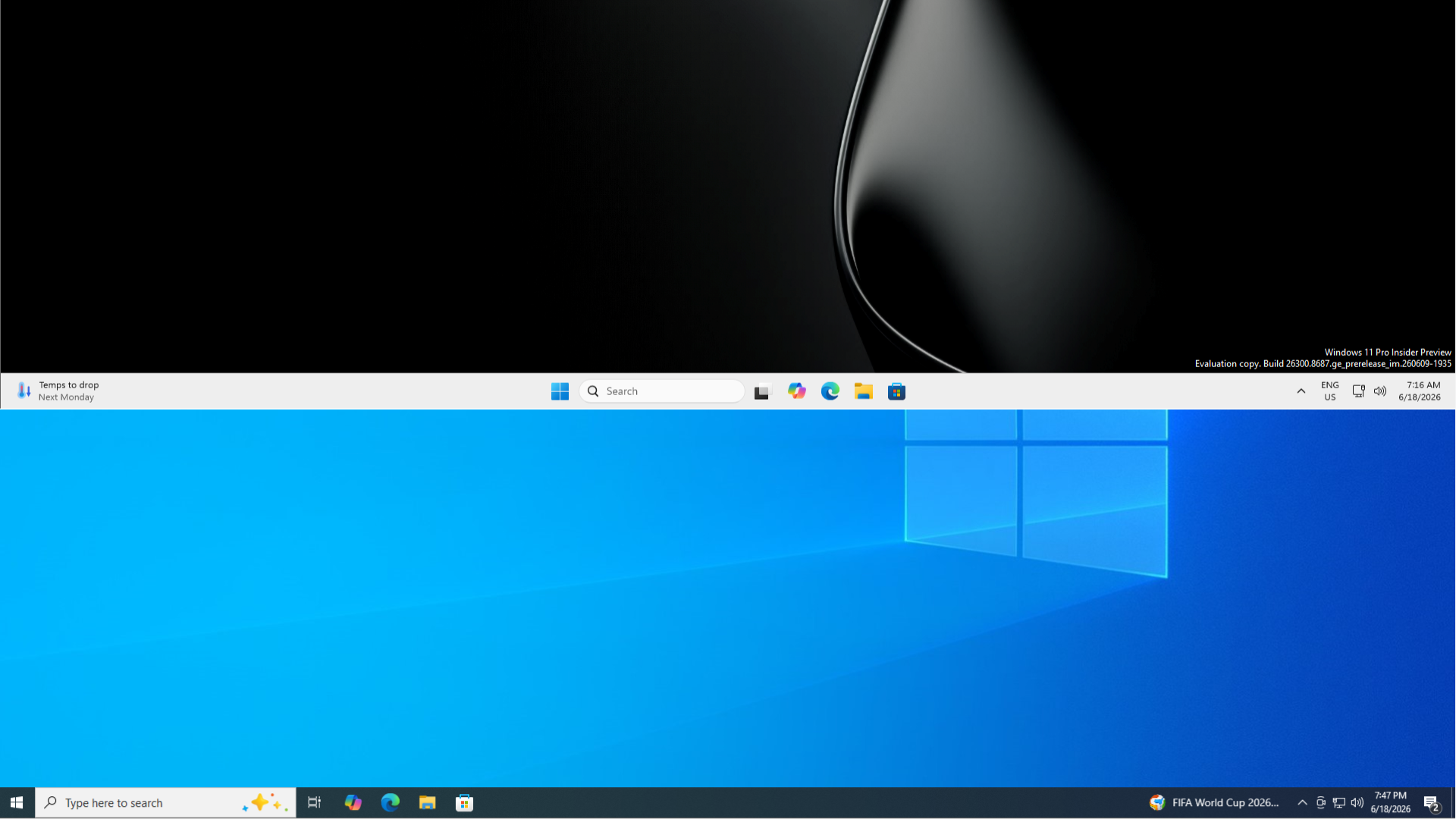
Windows 10 also featured a prominent “Type here to search” bar on the taskbar, which occupied a considerable amount of horizontal space. Windows 11 replaced this with either a compact search button or a narrower search box, depending on your settings.
However, the most impactful difference lies in the taskbar's right-click menu. While Windows 11 has pared down the menu and requires users to navigate to the Settings app for any substantial customization, Windows 10 offers a robust set of customization options directly from the right-click menu. This makes the Windows 10 taskbar feel more powerful and user-friendly.
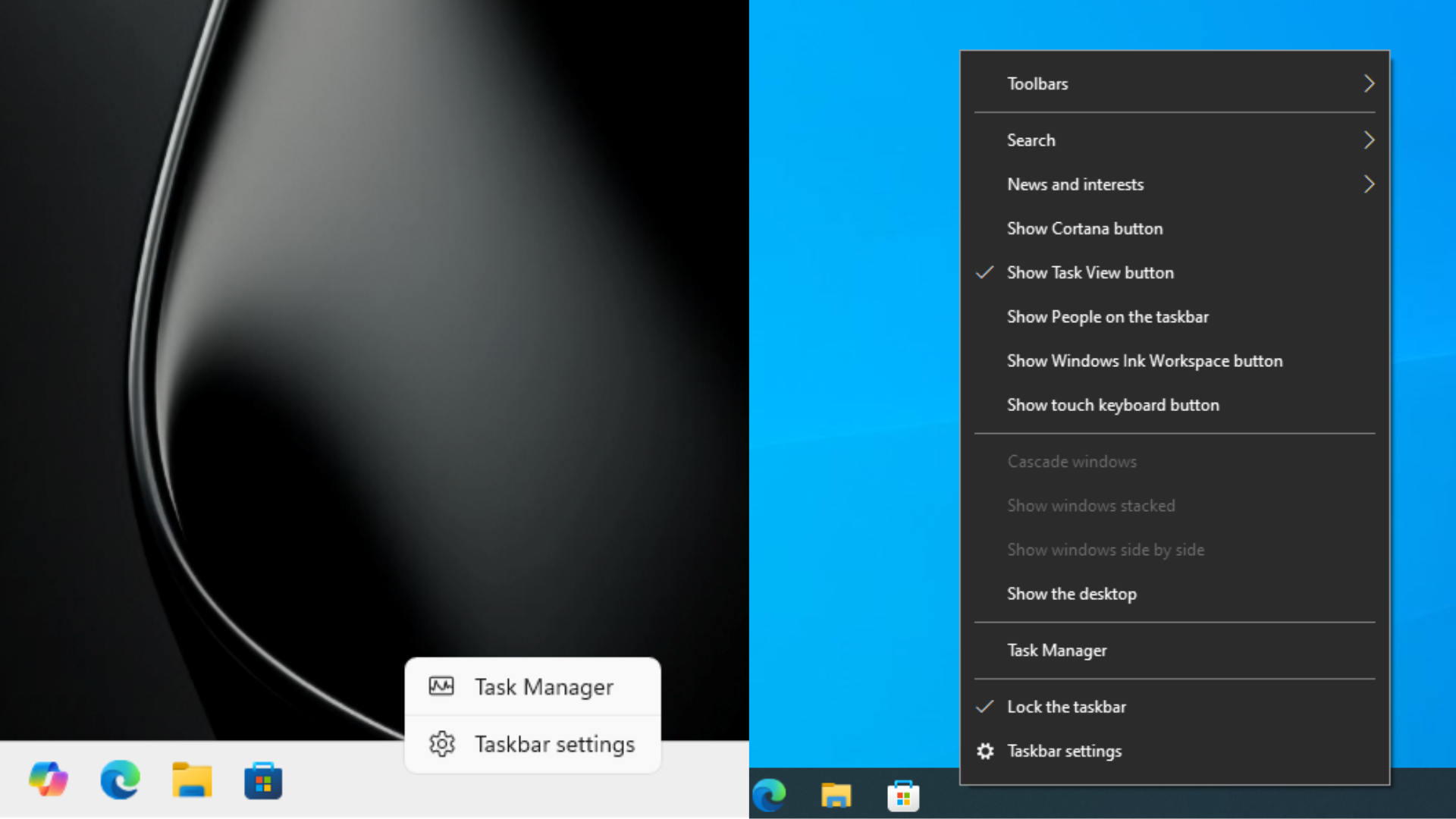
While I appreciate the cleaner design and rounded corners of the Windows 11 right-click menu, I can’t help but miss the efficiency and depth of customization available in Windows 10.
Customizing the Search Bar
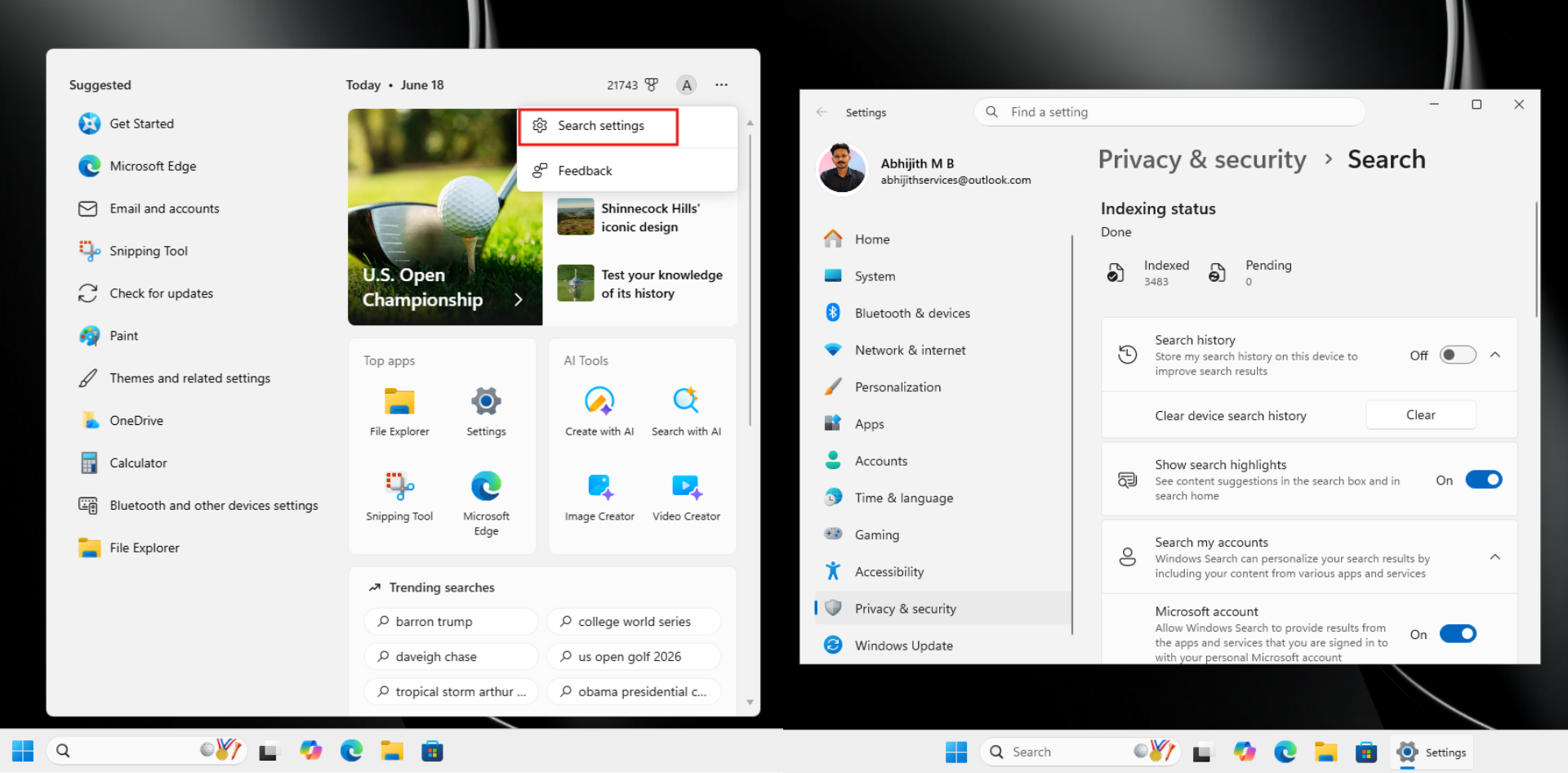
In Windows 10, you can customize the search bar directly from the taskbar. Options include hiding it, displaying only the search icon, or disabling features like search highlights and "Open on hover."
In contrast, Windows 11 doesn’t allow you to right-click the search bar for customization. Instead, you need to click on it, select the three dots, and navigate to Search settings, which opens a separate Settings page.
Taskbar Height: Progress in Windows 11
One of the most common complaints about Windows 11’s taskbar, particularly from users with smaller screens, has been its height. By default, Windows 11's taskbar is taller than Windows 10’s, taking up more vertical screen space. For someone like me who uses 13- or 14-inch laptops, this was frustrating as there was no way to adjust its size—at least, not without resorting to registry hacks.
Windows 10 had long offered a "Use small taskbar buttons" toggle, accessible via Settings > Personalization > Taskbar. Enabling it would instantly reduce the taskbar’s height, scaling down the size of clock, system tray icons, and app buttons. This was a must-have feature for me on all my Windows 10 devices.
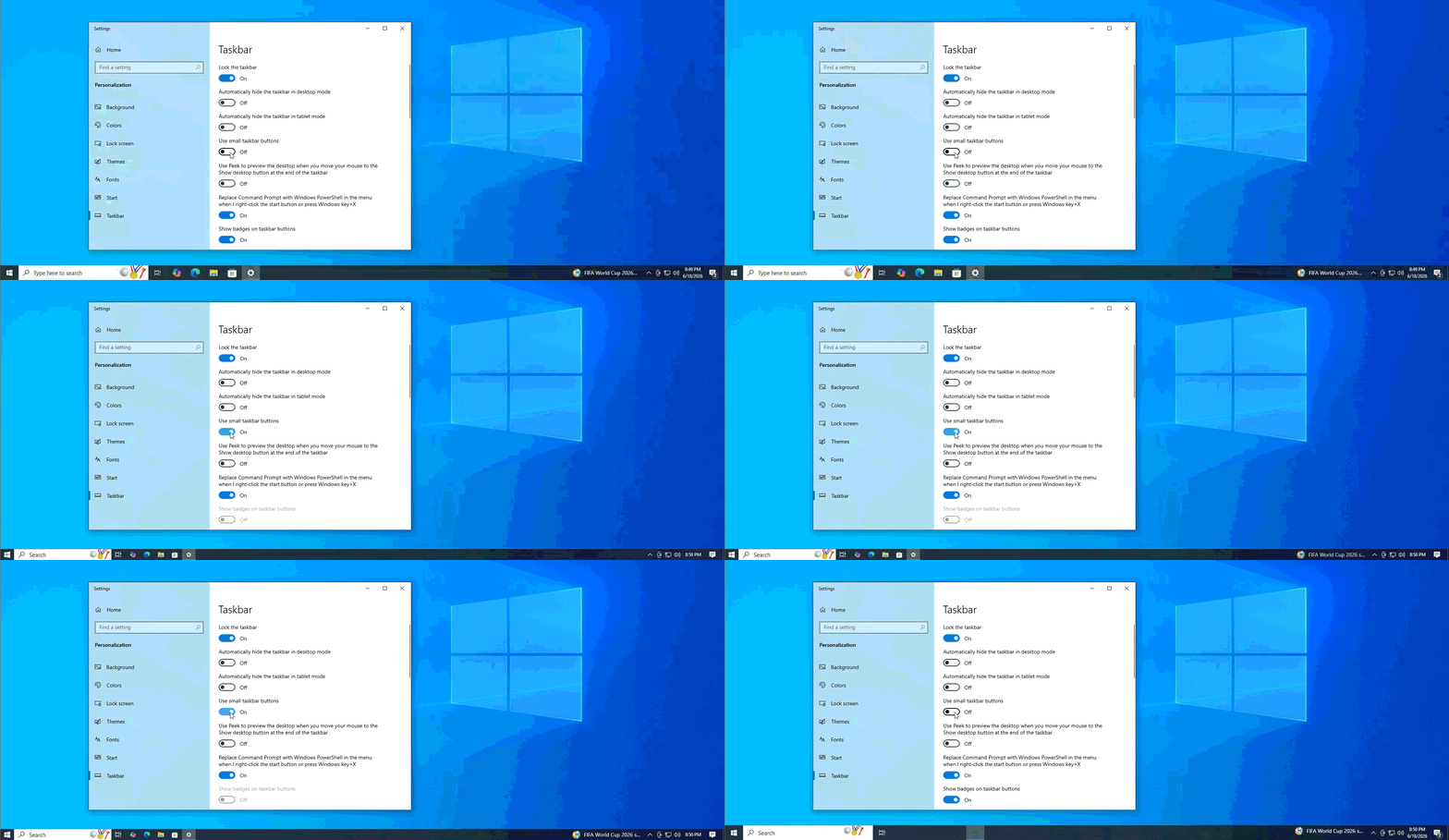
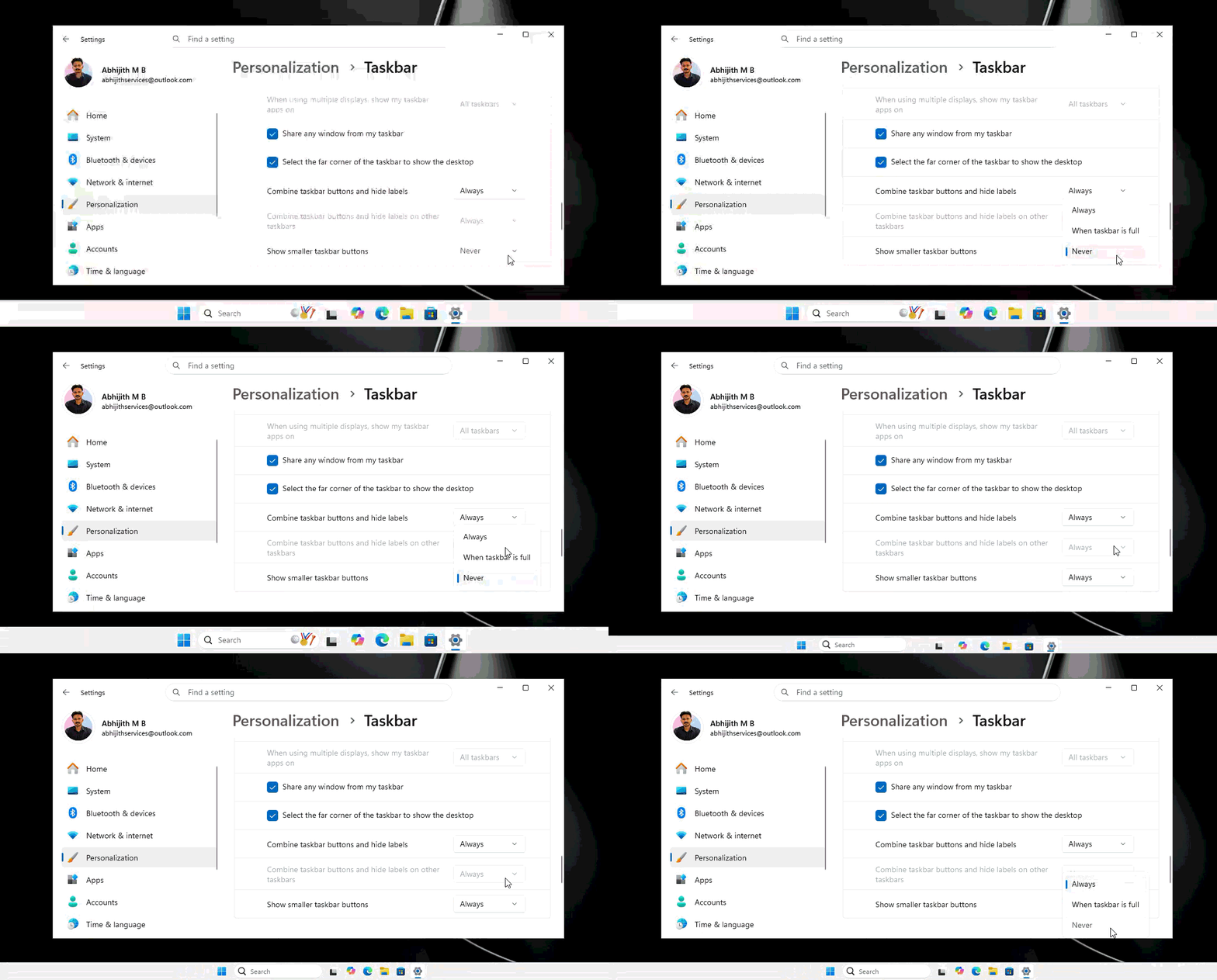
Thankfully, MS has listened to feedback and reintroduced this option in Windows 11. You can now find it under Settings > Personalization > Taskbar > Taskbar behaviors, labeled as “Show smaller taskbar buttons.” Unlike Windows 10’s binary toggle, Windows 11’s implementation offers slightly more granularity. For now, both options behave similarly, shrinking the taskbar and its contents proportionally.
Repositioning the Taskbar
One area where Windows 10 still excels is taskbar repositioning. In Windows 10, you can simply click and drag the taskbar to move it to the top, left, or right of the screen—no settings menu required. This intuitive interaction has been a hallmark of the Windows 10 experience.
In 2021, MS removed this feature in Windows 11, citing technical challenges stemming from the OS’s re-architected infrastructure. While Windows 11 has now reintroduced taskbar repositioning via Settings > Personalization > Taskbar > Taskbar behaviors > Taskbar position, it still lacks the drag-and-drop interaction, leaving a noticeable gap in usability.
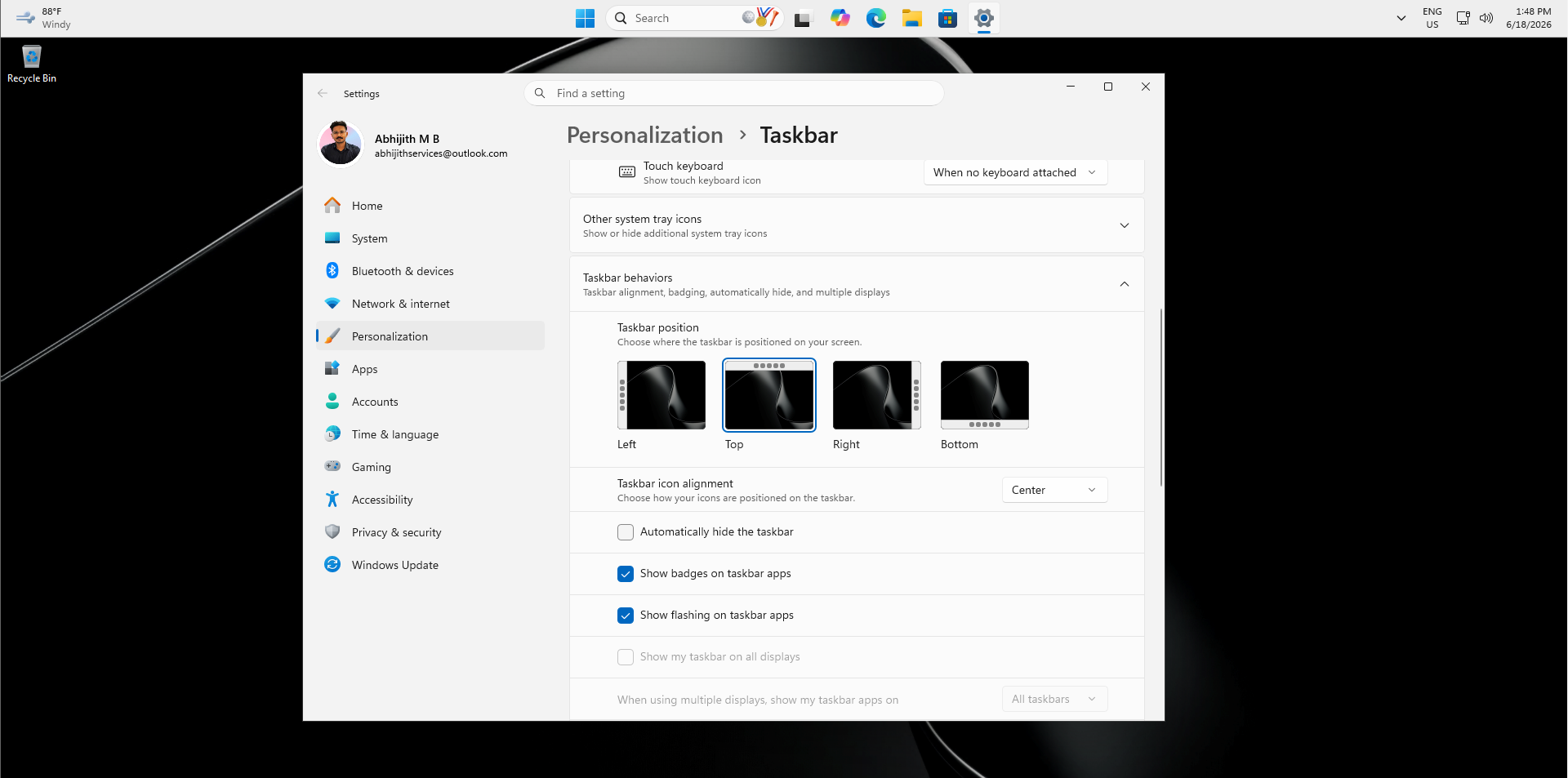
Although Windows 11’s implementation looks more modern, it feels less intuitive compared to Windows 10’s approach. However, MS is testing more advanced positioning features, such as per-monitor taskbar customization, which could eventually give Windows 11 an edge.
Combining Taskbar Buttons and Hiding Labels
Windows 11 combines app icons and hides their labels by default, a behavior configurable via Settings > Personalization > Taskbar > Taskbar behavior. While this works well for some users, it can be a disadvantage when managing multiple instances of the same app, such as two Excel sheets with different file names.

Windows 10 handles this scenario more elegantly by displaying stacked lines below the app icon, indicating the number of open instances without requiring users to hover over the icon. This subtle but effective design choice highlights the level of detail and user-centered thinking in Windows 10’s taskbar.

The Start Menu Experience
Perhaps the most significant difference between the taskbars of Windows 10 and Windows 11 lies in the Start menu. Windows 10’s resizable Start menu has been a user favorite since the Fall Creators Update, allowing pixel-by-pixel adjustments for height and width.
Windows 11’s Start menu initially launched with a fixed size and limited customization options. While recent Insider builds have introduced small and large size presets, the full drag-to-resize functionality of Windows 10 remains absent.
Final Thoughts
After five years of development, the Windows 11 taskbar has bridged much of the gap with Windows 10. However, a few key features, like drag-and-drop repositioning, remain absent. While Windows 11 introduces innovative features, such as enhanced virtual desktops and AI integrations, it also adds complexity to the user experience. For those who prioritize speed, efficiency, and simplicity, Windows 10's taskbar remains a strong contender. However, for users embracing modern design and forward-looking features, Windows 11 offers plenty to appreciate.